My profile
The purpose of this guide is to provide an overview of the My profile function in the Evelyn Partners client portal.
Your profile
The My profile section of the client portal is where you can view and configure your settings such as contact details, password and devices that can access the mobile app.
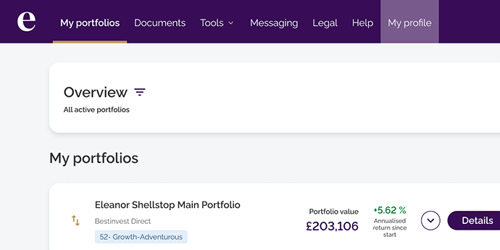
To access it, click on the My profile link at the top of the screen.
Your contact details
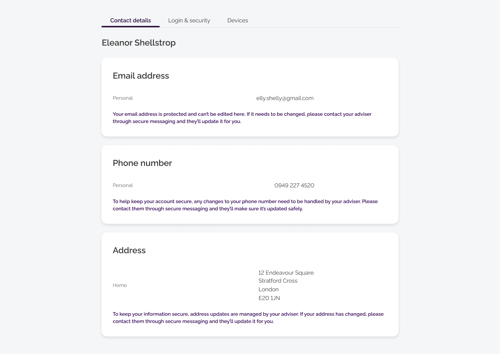
The contact details screen shows the email address, phone number and home address registered to your account. These details can be viewed in the Client Portal, but they can’t be changed here.
Your login and security
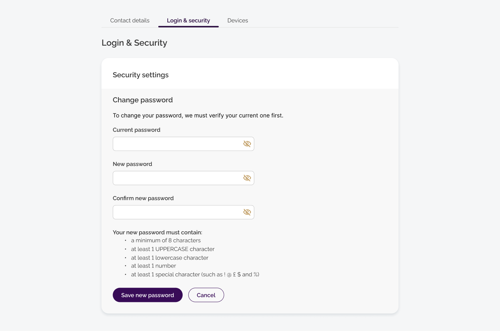
From this screen, you can change your password if required. To do this, select the Change button to the right of the password field. On the next screen, you must enter your current password, then your new password and confirm this value.
Please note that your new password must contain at least 8 characters: one lowercase, one uppercase, one number and one special character such as @ # $ %.
Tip: Always create a password that is considered strong, mixing upper- and lower-case letters, numbers and special characters. Also, avoid using information that can be associated with you, for example family or pet names. |
Your devices
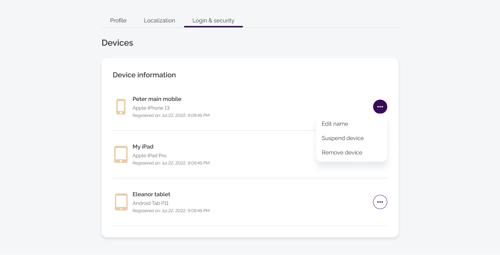
From the Devices screen, you can see all the devices that currently have access to the client portal or mobile app. By clicking the three-dot menu next to any device, you can choose from three available actions to manage its access:
Edit name – gives a device a clearer, more recognisable label (e.g., “Peter Main Mobile” or “Home iPad”).
Suspend device – temporarily blocks a device from accessing the portal or app, for example if you've misplaced your phone or it's being repaired.
Remove device – permanently revokes access for a device you no longer use, such as an old tablet you've replaced or given away.