Search for a client
- Frequently asked questions
- Search for a client
- See my clients' portfolios
- Reset client password and unlock account
Search for a client
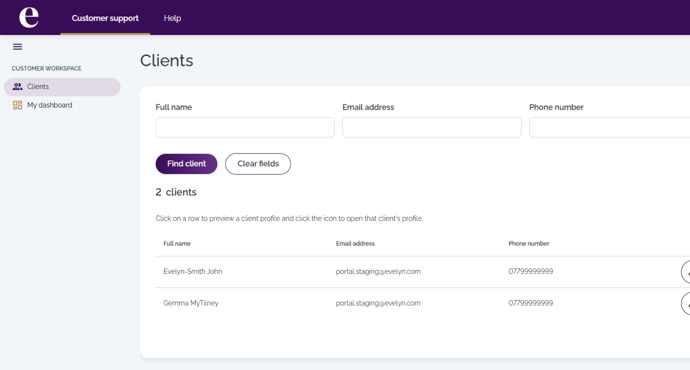
When you log into the intermediary portal it will take you directly to the Clients page as shown below. From here you will be able to search for any client that has been assigned to you.
You can search for a client using one or more of the available fields: Username, Name or Xplan ID, Email address, or Phone number. You can enter full or partial details, and combine multiple fields (for example, name and phone number) to narrow your results. Matching clients will be displayed in a list below.
Selecting a client from the list will display a User preview panel on the right, where you can check key details such as date of birth, username, phone number, email address and address, as well as additional client information. To view the full client record, click Open profile.

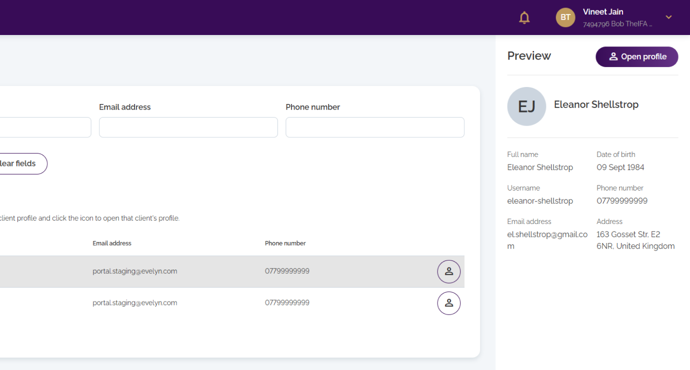
| Tip: you can access the Customer overview page directly by clicking the user icon in the search results list |
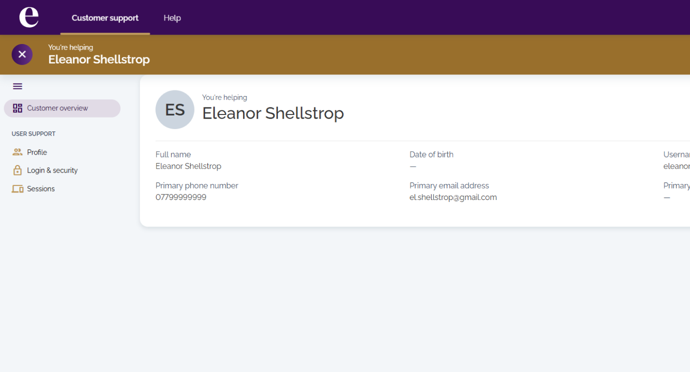
The client record will open on the Customer overview page, where you can use the left-hand panel to access different sections, including profile details, login and security settings, devices, sessions, comments, activity log and messages.