
See my clients’ portfolios
Switch to client view
You can switch to a client view to see the portal as your client sees it. To do this, first search for and open the Customer overview page, (see Search for a client for more information).
From the client record, click the Actions in the top right and select View client portfolio.
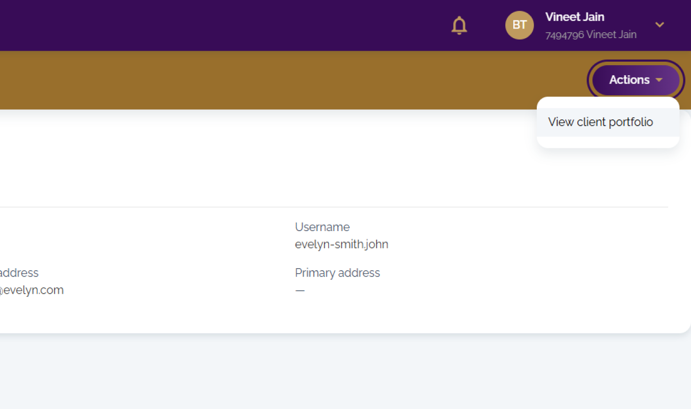
A confirmation pop-up will appear. Click View client portfolio to continue. A new tab will open, starting a session in the client view. You’ll see “Viewing (client name) portfolio” at the top of the screen.
You can now view the client’s portfolios, documents and other information as they appear in the client portal.
Client portfolio view
The key elements of this are highlighted on the image below:
- Clicking on the drop-down next to Total value will show the aggregated value over time and the asset allocation for all portfolios combined.
- Clicking on the drop-down arrow next to an individual portfolio displays a chart showing the asset allocations of the portfolio and performance statistics
- Clicking on the Details button next to an individual portfolio provides full details of that portfolio
- Clicking on the filter icon next to Overview allows you to select which portfolios are included in the total value and allocations summary
- Under My contacts, you can find the details of the advisers associated with client’s account.
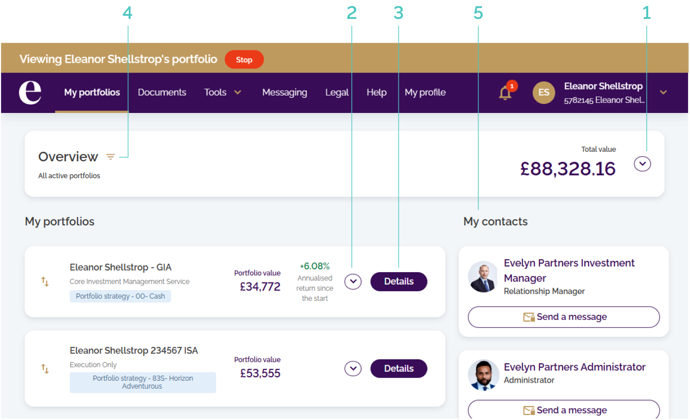


The overview of the client’s active portfolios
The Overview card, at the very top, shows the combined total value of all the client’s active portfolios. By clicking the drop-down arrow next to Total value you can see more detailed summary details with a performance chart and a breakdown of your top asset allocations.
The Top asset allocations graph shows only the five largest asset classes. Smaller allocations are grouped into the remaining balance, so the percentages may not add up to 100%.
You can always access the full breakdown by selecting the Details button next to an individual portfolio (see more information below).
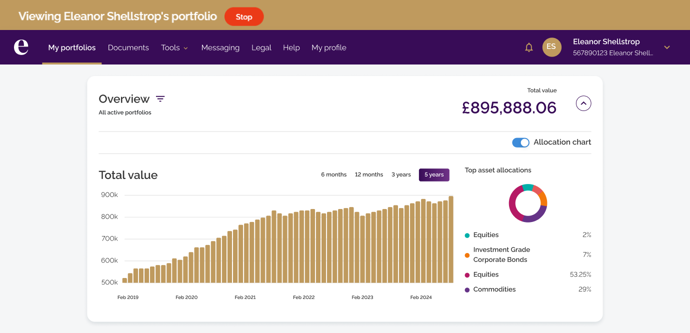
| Note: the valuation of the client’s combined portfolios will always be displayed in the default currency (e.g., Pound sterling) even if some of the portfolios are in a different currency. |
Individual portfolio summary
Clicking on the drop-down arrow next to an individual portfolio shows a similar view as that above in terms of how the portfolio is designed and its performance to date.

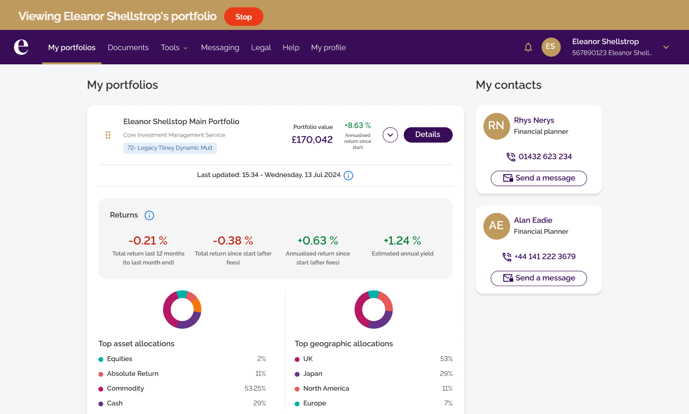

Individual portfolio details
- Performance – displays graphs showing the cumulative return and valuation history of the portfolio with adjustable time periods
- Assets – displays the assets that make up the portfolio
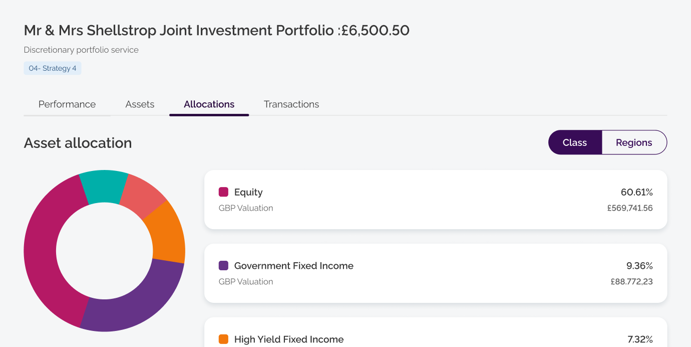
- Allocations – displays the allocation of assets within the portfolio (see image below)
- Transactions – displays transactions relating to the portfolio

Tip: returning to the My portfolios view. When viewing a specific portfolio’s details, you can return to the main dashboard by clicking the Back to all portfolios link above the portfolio name. 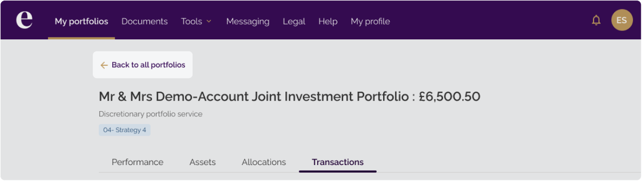 |
Exiting the client portfolio view
To exit the client view, click the red Stop button displayed at the top of the screen next to the client’s name. You will then be logged out of the client view, after which you can close the tab.
| TIP: you will still be logged into the portal, simply return to the original tab (the client view opens in a new tab). |