Activate activation process
The purpose of this guide is to explain how to activate your Evelyn Partners Client Portal account.
When to use this help page
You received an activation link in an email invitation to create your login credentials.
To access the Client Portal, you'll need an official activation email from Evelyn Partners.
This email contains a secure link that you'll use to begin the account activation process.
If you cannot find your activation email, think it may have expired, or would like access to the Client Portal for the first time, please contact your adviser or normal Evelyn Partners contact and we'll be happy to help.
Once you begin activation, you'll be guided through setting up your username and password. The process is quick, secure and designed to help protect your account.
Activation process
When you join the Evelyn Partners Client Portal as a new client, you will receive an enrolment email. This email contains a secure link which you will need at the start of the activation process.
*IMPORTANT: The enrolment link is valid for 24 hours. If it expires before you complete the process, a new email will need to be sent to you. Please check your inbox and junk/spam folders for this message. If you cannot find it, please contact your Evelyn Partners adviser or call us on 020 7189 9950.

Open the activation link from your email
Click the link in your enrolment email to start the activation process. You will first be presented with our welcome pages where you can review our Privacy Notices.Review Privacy Notices and set your preferences
As part of enrolment, you’ll be asked to review our Privacy Notices and GDPR information. You’ll also be able to set your marketing preferences during this step.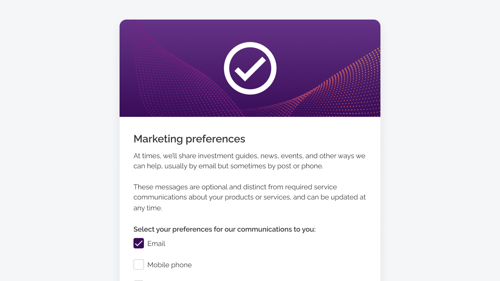
Create your login credentials
Once you’ve completed the privacy steps, you’ll be asked to create your username and password for the client portal.
Your password must contain at least 8 characters, including:
- one lowercase character
- one uppercase character
- one number
- one special character (e.g. @ # $ %)
Enter your username and new password, then confirm the password to continue.Log in securely
Once your credentials are created, you can log in to the Client Portal using your new username and password. For security, you’ll also complete a two-step verification, with a code sent to your registered email address.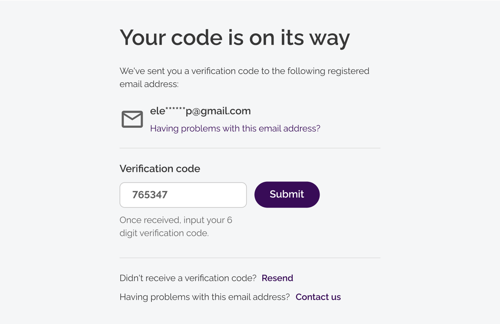
After this, you’ll have full access to your Client Portal.
Logging out of the Client Portal
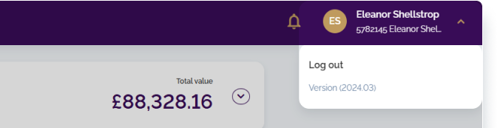
When you have finished using the client portal, it is important to end your session properly by using the logout option. Please do the following:
- Click on the drop-down arrow next to your name in the top right corner of the screen
- Click Log out
-You will now be disconnected from the client portal