Mobile app - Features overview
The purpose of this guide is to provide an overview of the features available when using the Evelyn Partners mobile app.
The mobile app
The mobile app allows you to review your portfolios, view documents and legal information and update your profile details from your mobile phone. The app is available for Apple iOS and Google Android devices.
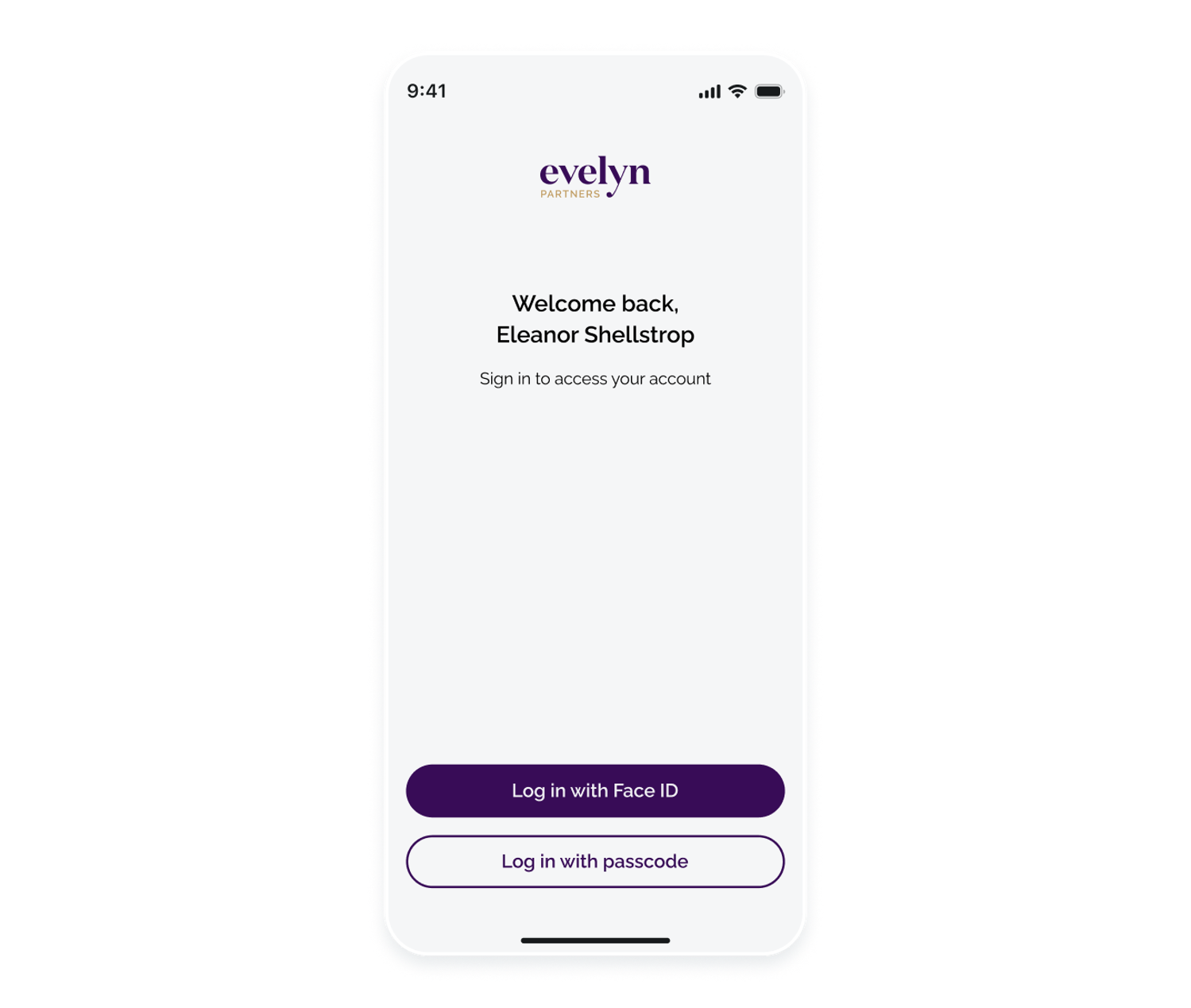
After the initial registration and setup has been completed, you log in using either Face ID/fingerprint ID or a numeric passcode set up during registration.
Getting around the app
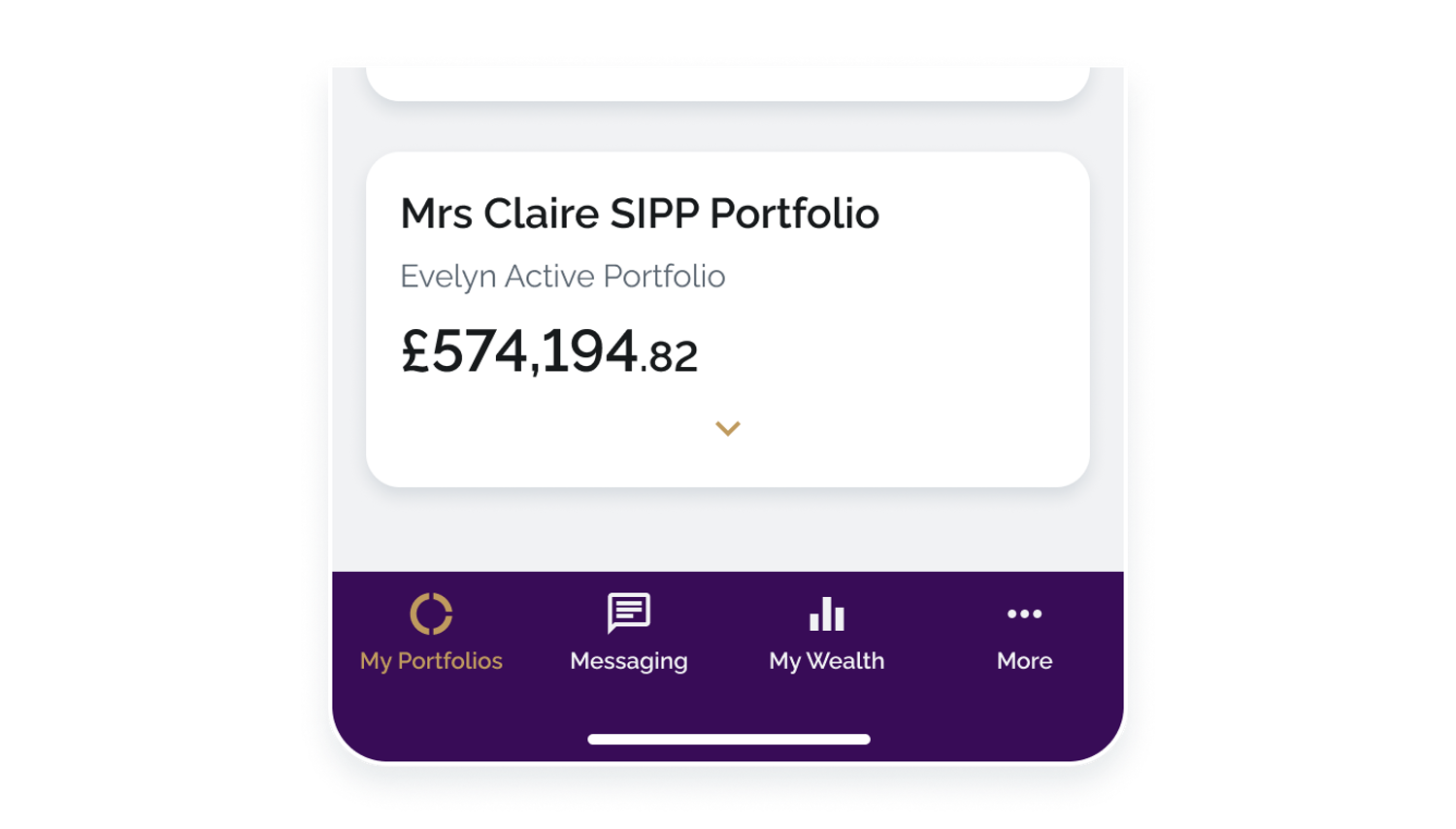
The bottom navigation gives you quick access to the main areas of the app:
My portfolios is where you can view your portfolios and their performance
Messaging lets you send and receive secure messages
My Wealth gives you an overview of your financial position, including your assets, pensions and liabilities.
More gives you access to Documents, your profile and app settings.
 The Overiew screen
At the top of the page, you’ll see the combined value of your portfolios. You can choose which portfolios are included in the summary by tapping the filter icon and selecting the portfolios you want to include.
You can view your investments by Valuation or Allocation. Valuation shows how the combined value changes over time, with different time periods available. Tap any bar in the chart to see the valuation at that point in time.
The Allocation view shows how your selected portfolios are distributed across different asset classes. Each section of the chart represents an asset class and its share of the total portfolio value.
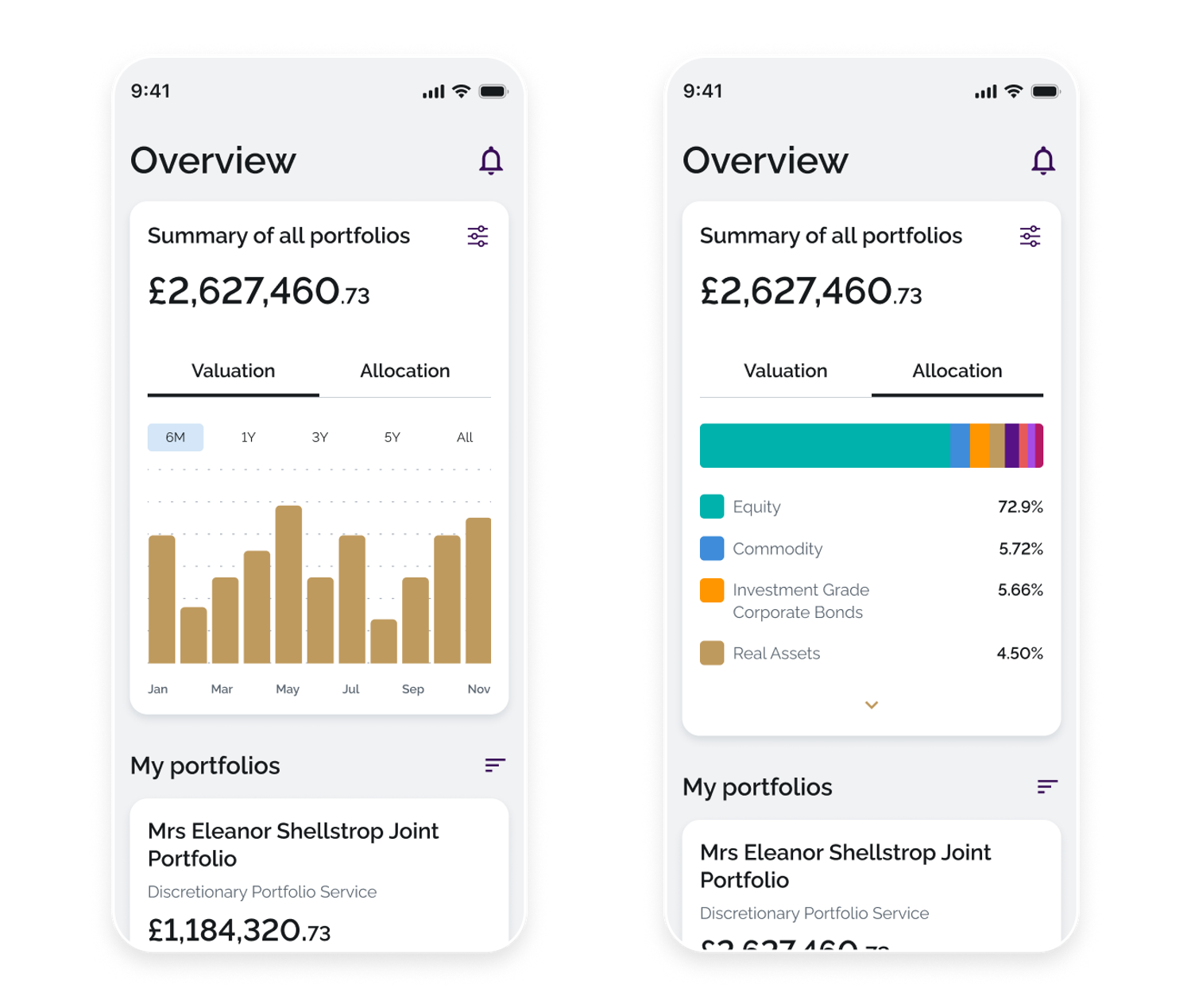
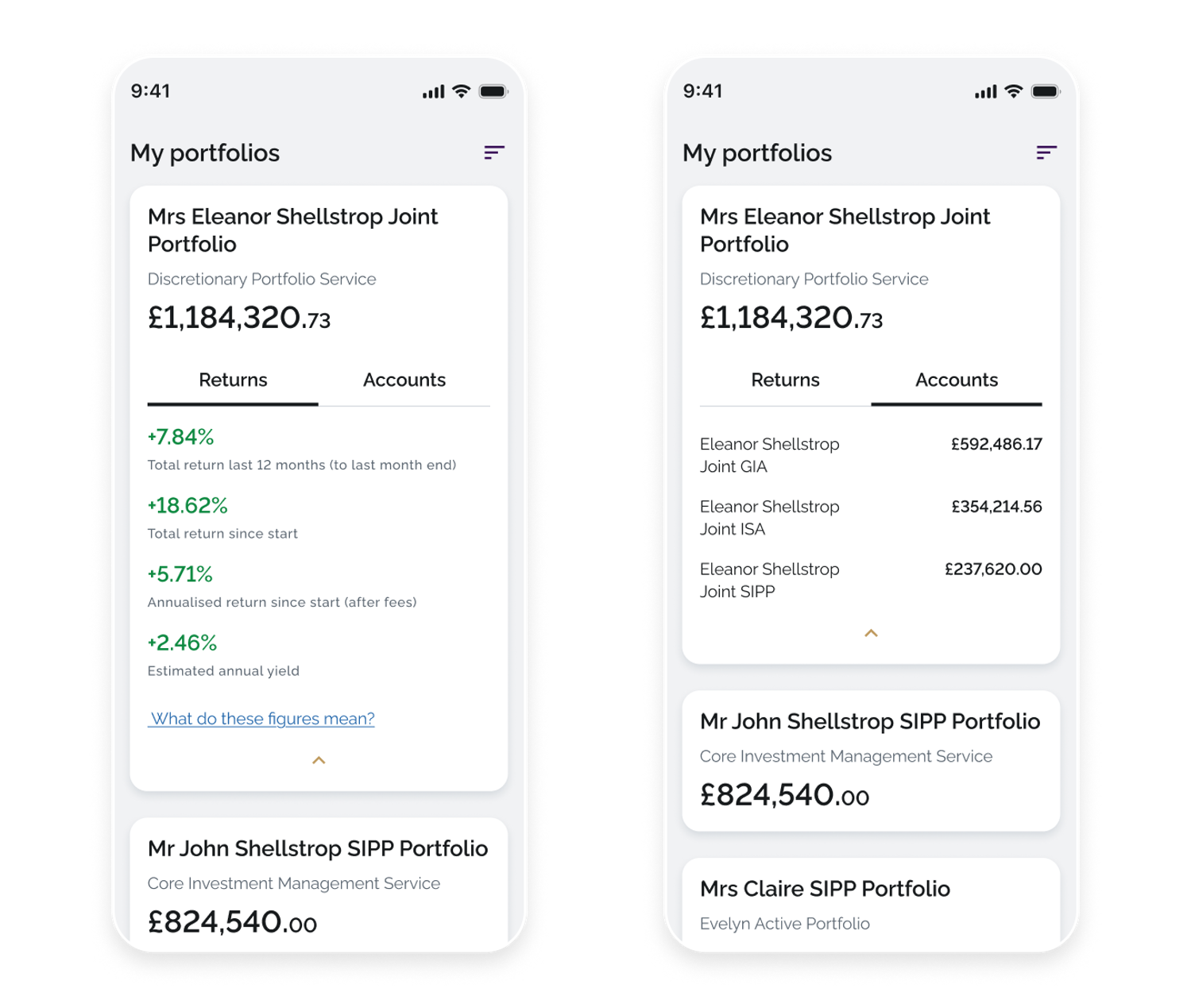
Below the summary, you can see the list of all your portfolios. You can sort them by portfolio value, from highest to lowest or lowest to highest, or keep the custom order from the Client Portal.
Tip: Custom order |
For each portfolio, you can quickly check additional information in the list. Tap the arrow below a portfolio to see performance figures under Returns, or the accounts associated with the portfolio under Accounts.
Portfolio details
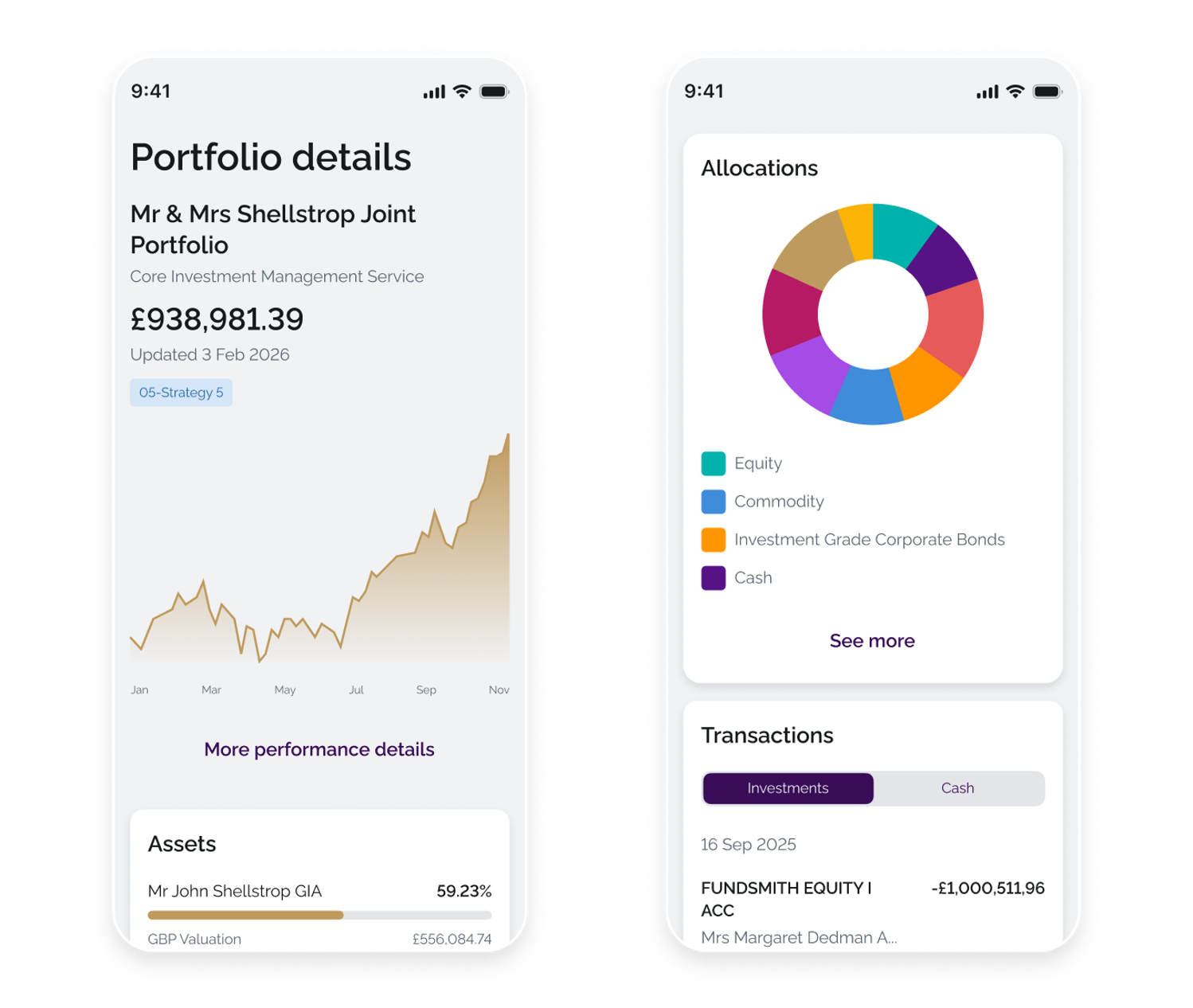
When you open a portfolio, you can see its performance, allocations, assets and transactions. Each section provides a summary, with See more available for the full details.
The performance graph shows how the portfolio has performed over time. Tap More performance details to see more performance information and compare it with a selected benchmark.
Assets show the investments held within the portfolio. You can select an asset to see the units or shares that make up the holding.
Allocations show how the portfolio is distributed across different asset classes or regions.
Transactions show activity within the portfolio. You can switch between investment transactions and cash transactions.
My Wealth
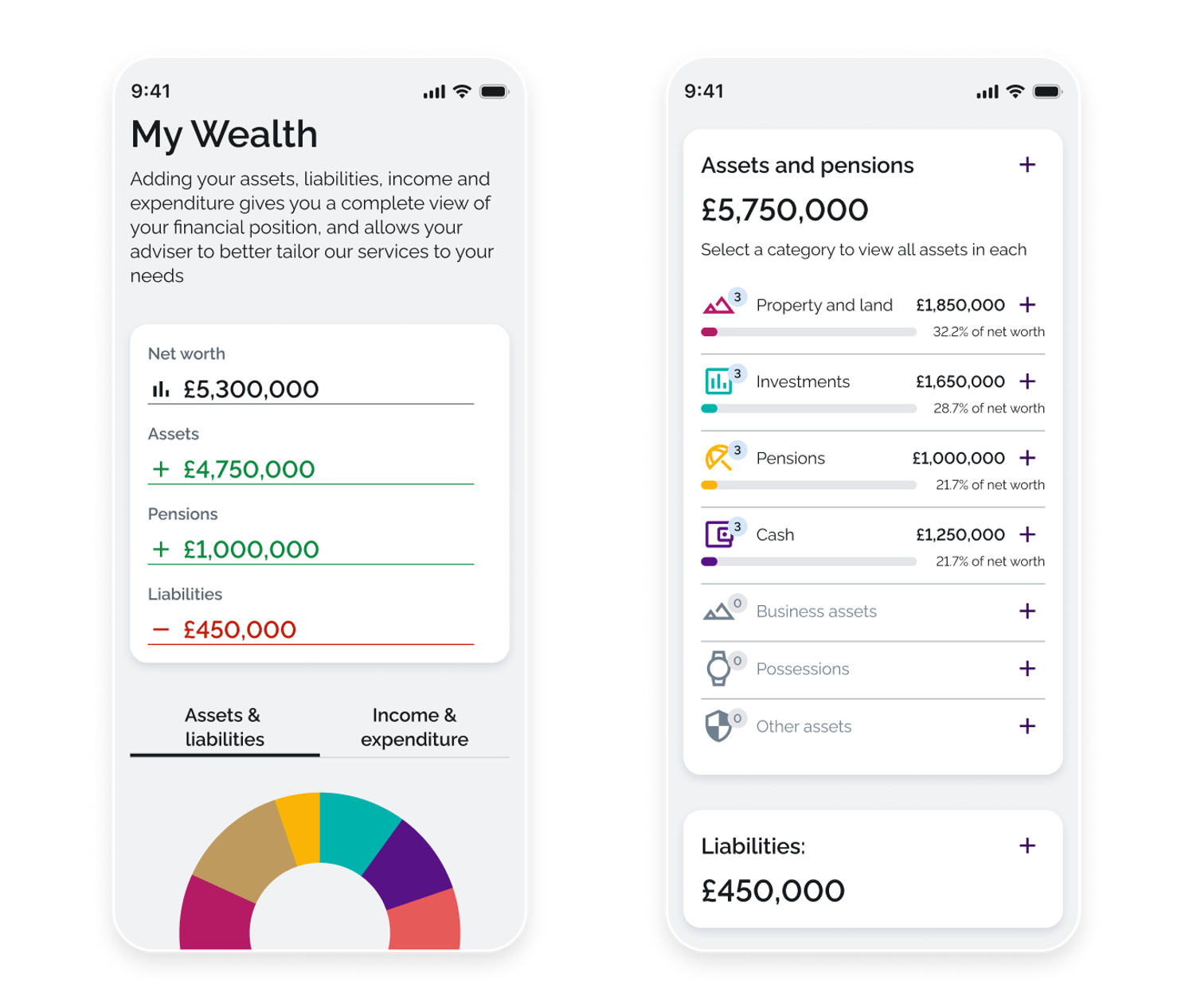
My Wealth provides an overview of your finances, including assets, pensions and liabilities. You can add and update your financial information to keep your details up to date. My Wealth can be accessed from the More menu in the app.
At the top of the page, you’ll see your net worth and the values that make it up: assets, pensions and liabilities. Your net worth is calculated from your assets and pensions, minus your liabilities.
Below the summary, the Assets & liabilities tab shows how your assets and pensions are distributed across different categories. You can select a category to see the entries within it and add, edit or delete them.
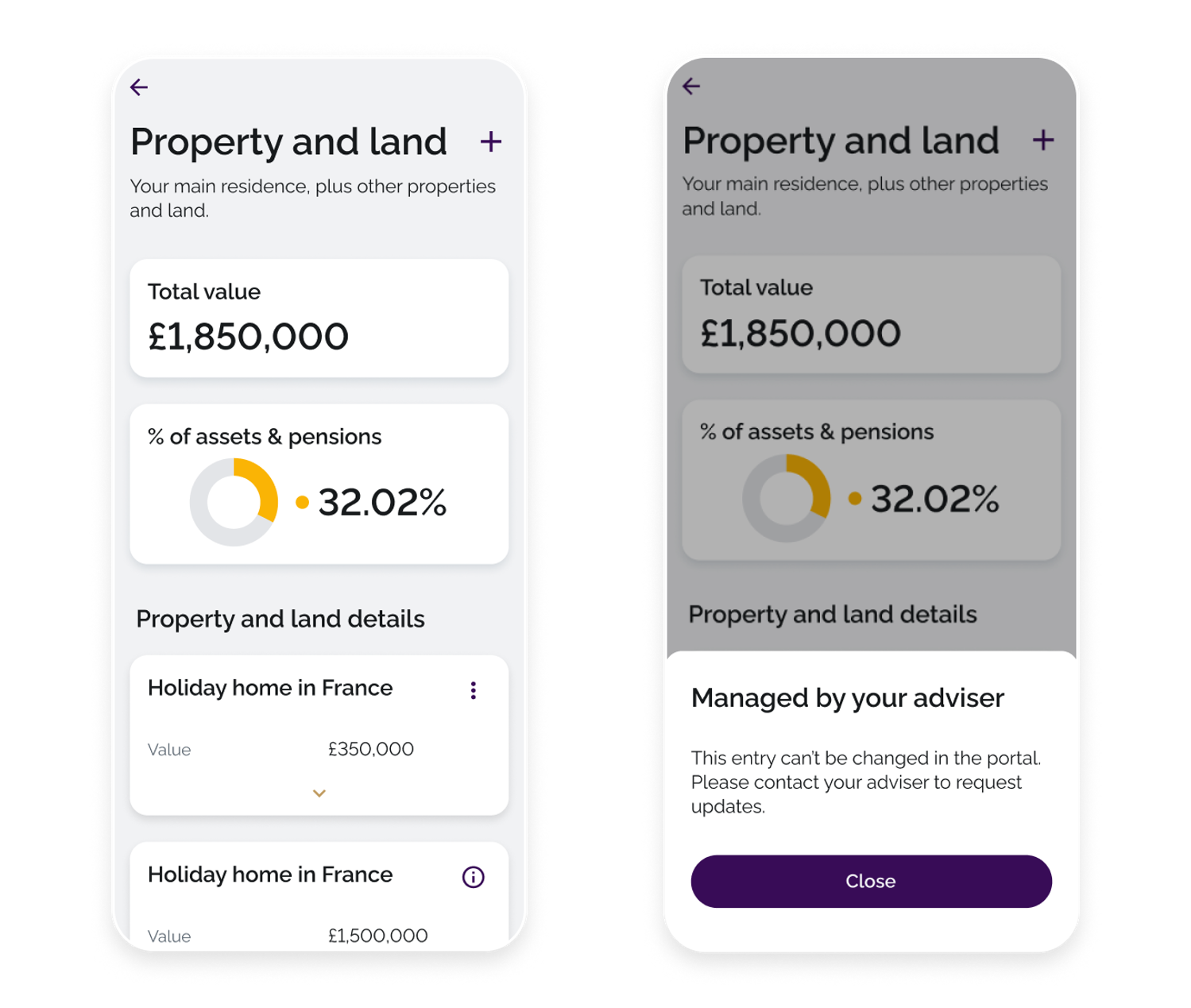
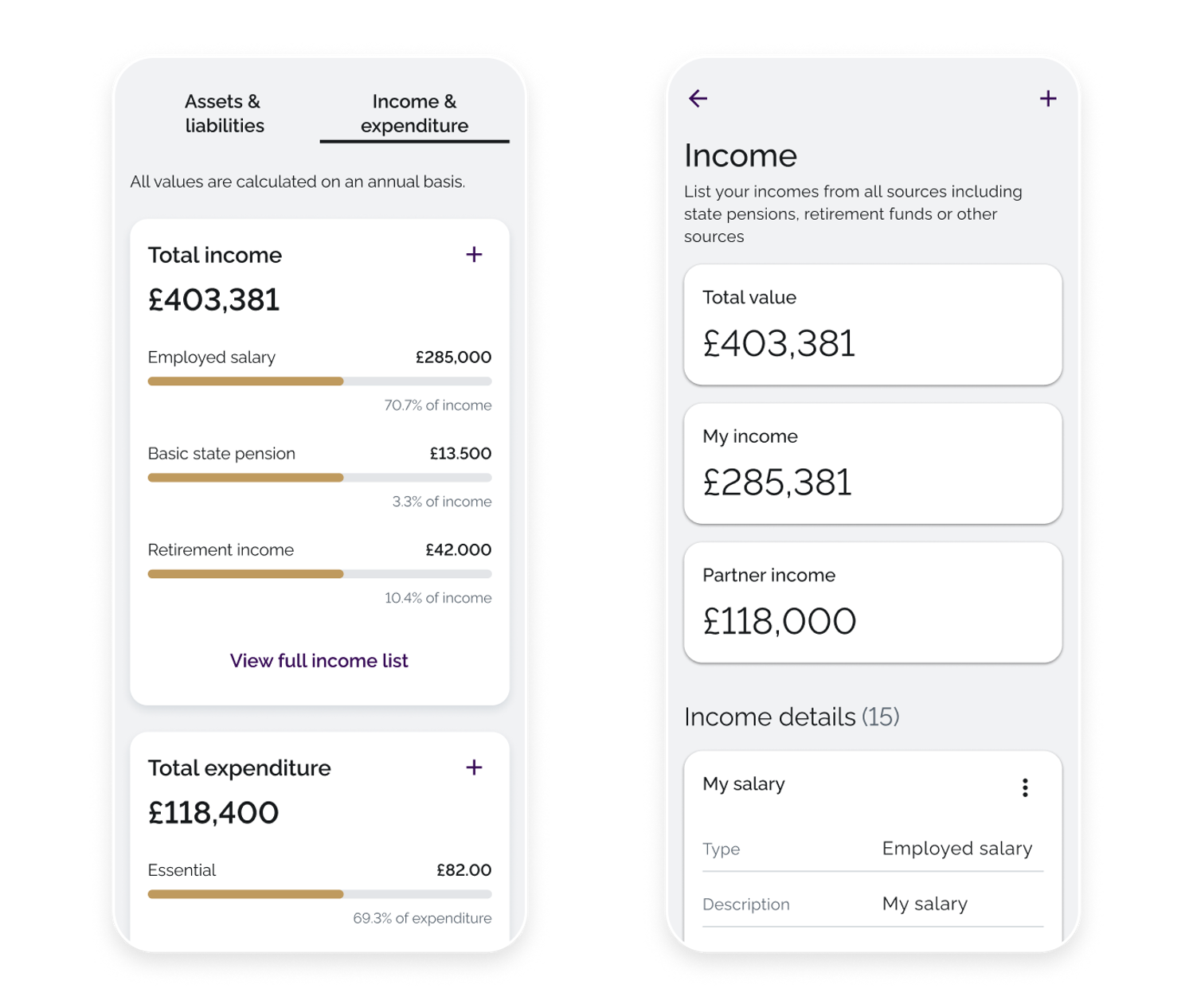
You can add a new entry by tapping the + icon. To manage an existing entry, tap the three-dot menu on its card to edit or delete it. Some entries may be view-only and cannot be edited.
 The Income & expenditure tab shows your income and spending on an annual basis. You can see a breakdown by category and add, edit or delete individual entries.
 Messaging
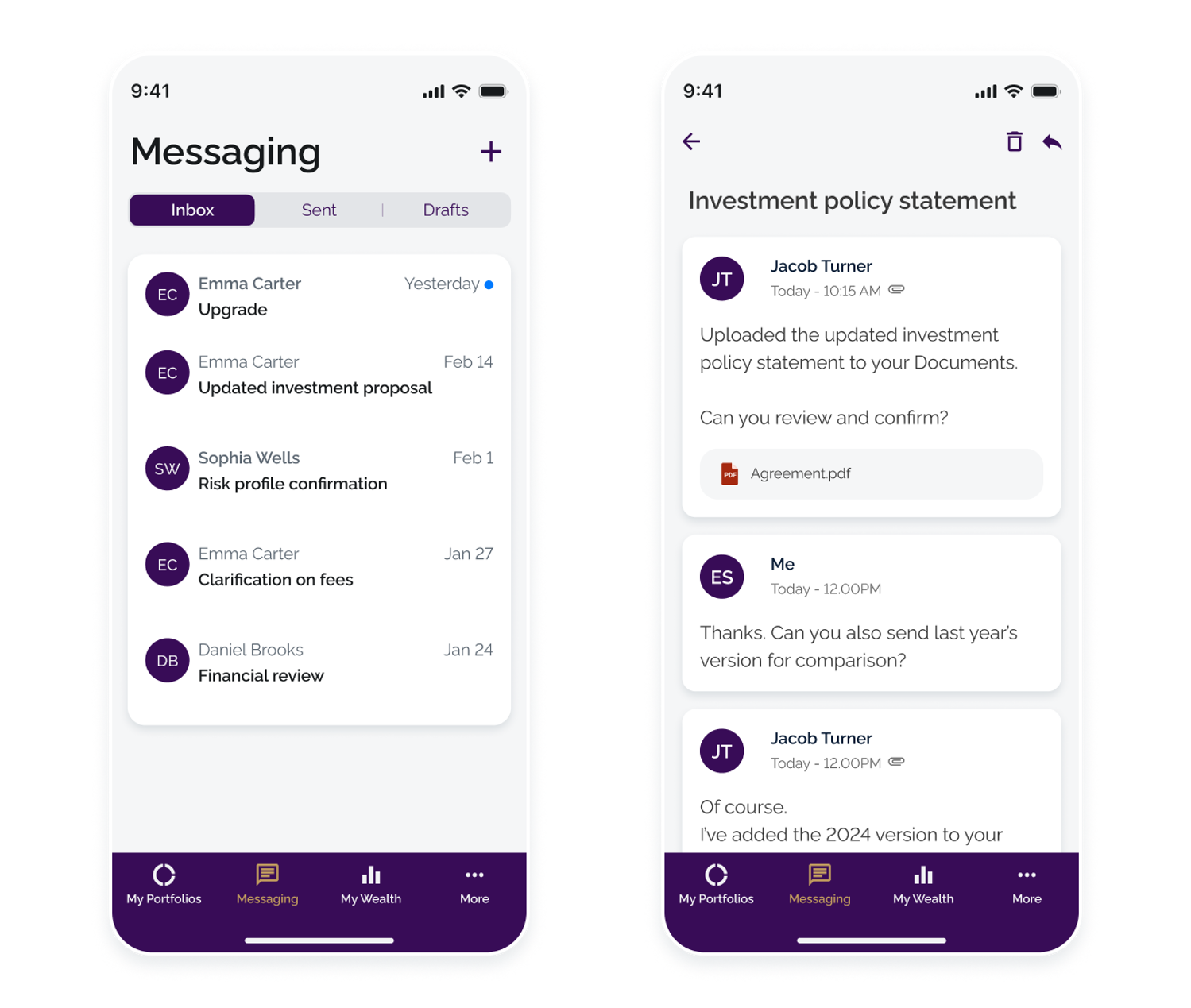
Messaging provides a secure way to stay in touch with your contacts once you’re set up in the app. You can send and receive documents safely and keep your conversations in one place. This helps move things forward faster, from approvals to ongoing updates, so you spend less time waiting and more time getting things done.
More menu
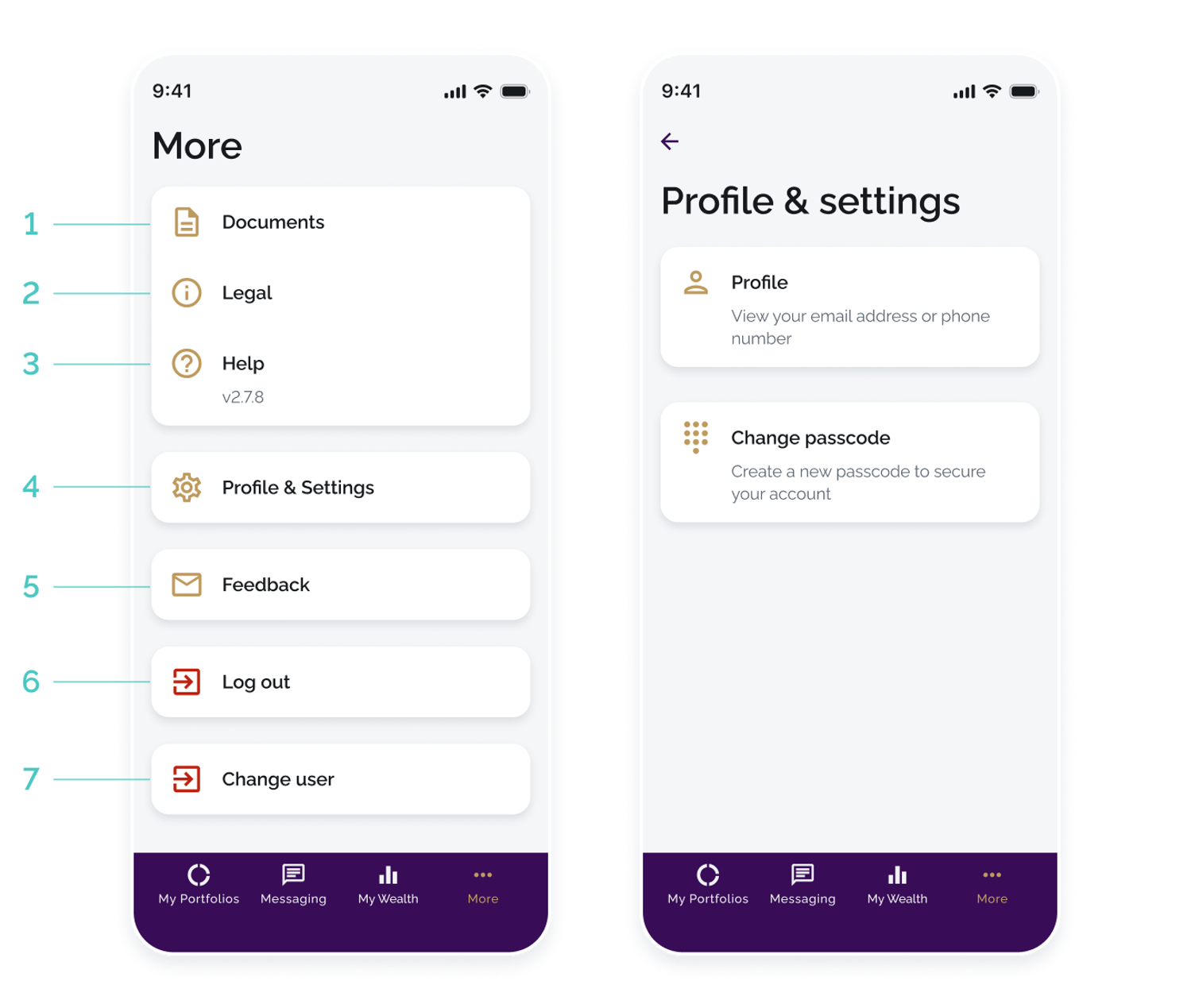
Tapping on the More link will give you access to additional features in the app including:
Documents – view all documents relating to your account and any linked accounts
Legal – view legal, risk and regulatory information
Help – access help information including guides and videos. You can also check the version of the mobile app currently installed on your device
Profile & Settings – view or update your registered email address or phone number. You can also change your passcode to log into the app
Feedback - send us your feedback about the app by email. We may contact you if we need more information.
Log out – end your portal session
Change user – log out and remove the saved login details from this device. You’ll need to enter your username, password and security code the next time you sign in.