My Wealth in the mobile app
The purpose of this guide is to provide an overview of the My Wealth tool in the Evelyn Partners mobile app.
My Wealth dashboard
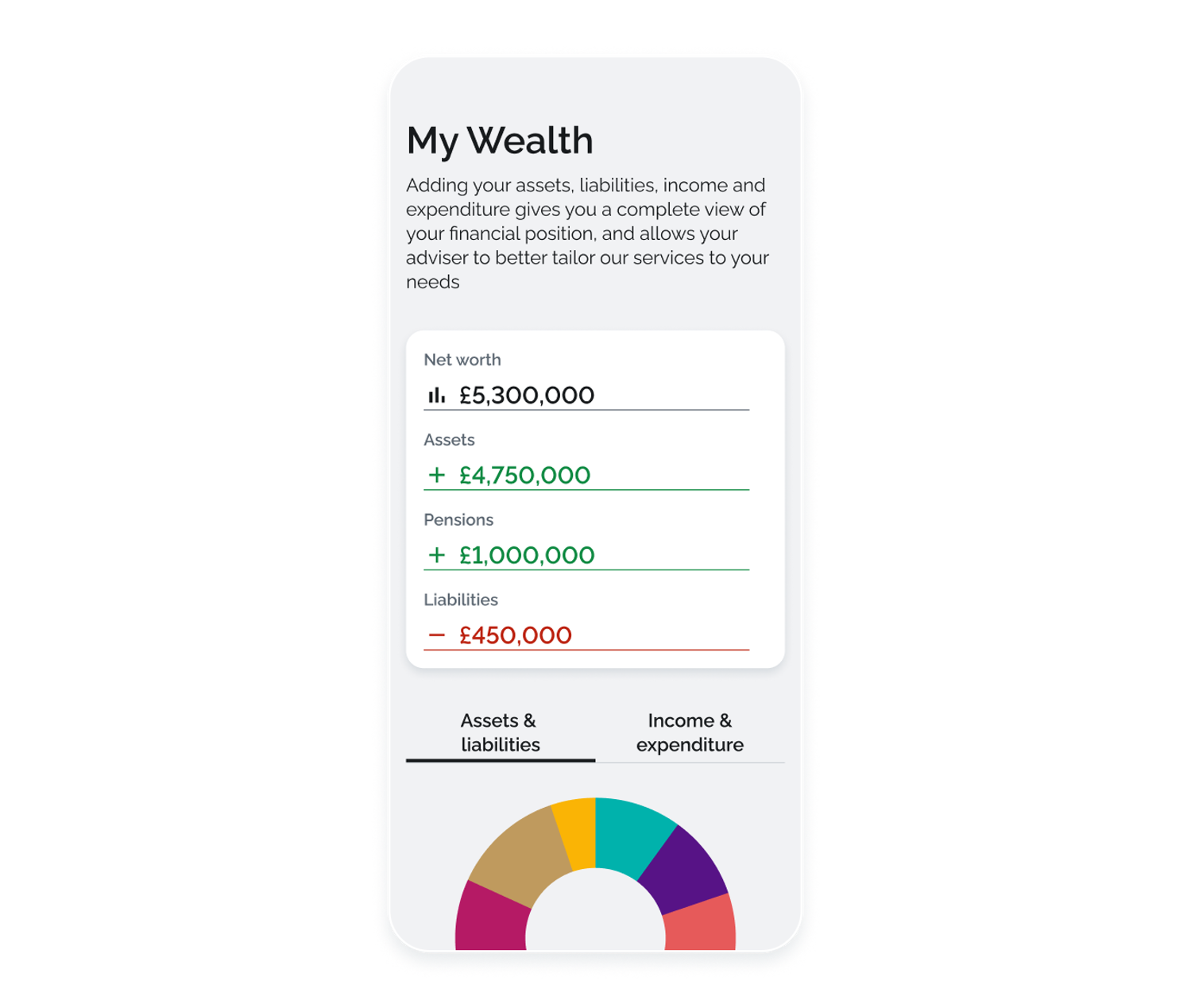
When you open My Wealth, you’ll see a summary of your overall financial position.
At the top of the screen, a summary panel displays your Net worth, which represents the total value of your wealth. Net worth is calculated as the combined value of your assets and pensions, less any liabilities. Below this are two main sections - Assets & Liabilities and Income & Expenditure.
Assets & Liabilities
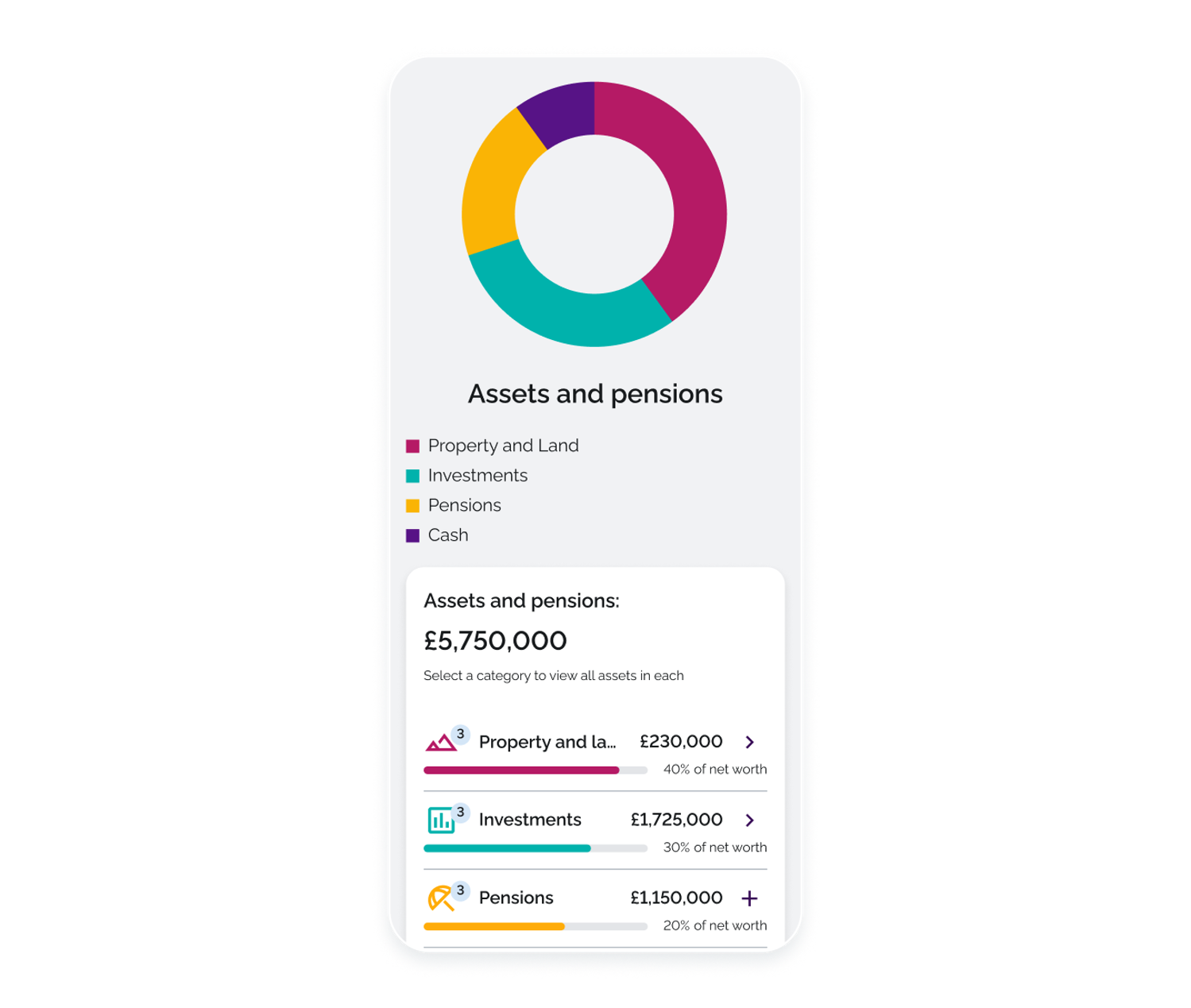
The Assets & Liabilities section gives you a clear view of your overall financial position by bringing together your assets, pensions and any liabilities in one place. Adding this information helps you and your adviser build a more complete and accurate picture of your wealth and long-term goals.
A chart illustrates how your assets are allocated across different categories. Below the chart, each category is listed with its current value and its proportion of your total wealth.
The Liabilities section provides a summary of your outstanding liabilities.
Viewing and managing your asset details
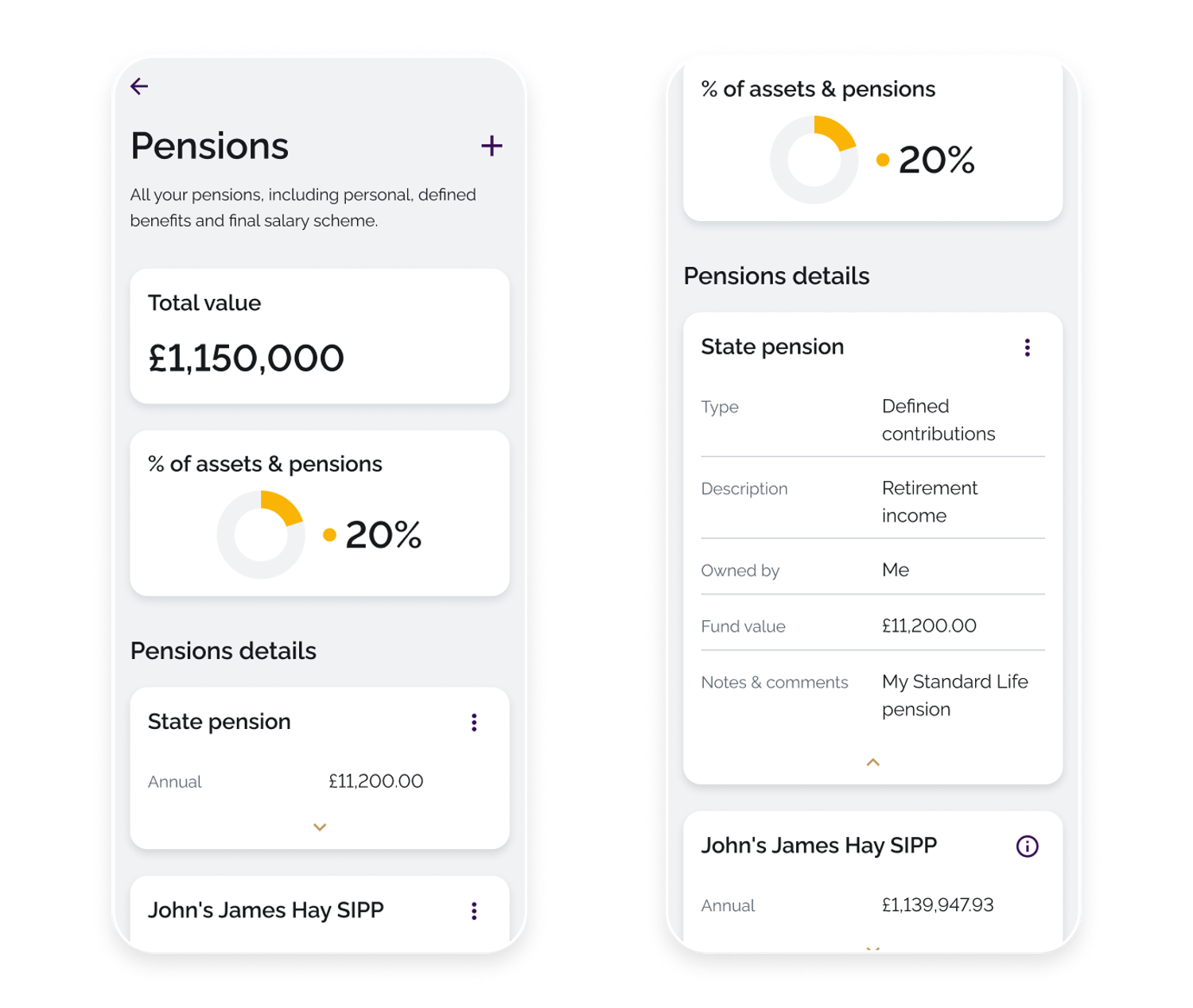
You can access the full list of each asset category by clicking directly on the asset group. On the overview screen, you’ll see the total value of the selected category and the percentage it represents of your overall wealth. Tapping a card displays the full details for that entry.
To add a new entry, tap the + icon in the top-right corner of the screen and complete the required information. To manage an existing entry, use the three-dot menu on the card to edit or delete it.
When adding an asset, you’ll be asked to provide details such as type, description and value.
If your partner is registered with Evelyn Partners, the Owned by field will include a Jointly option, allowing you to specify your ownership percentage.
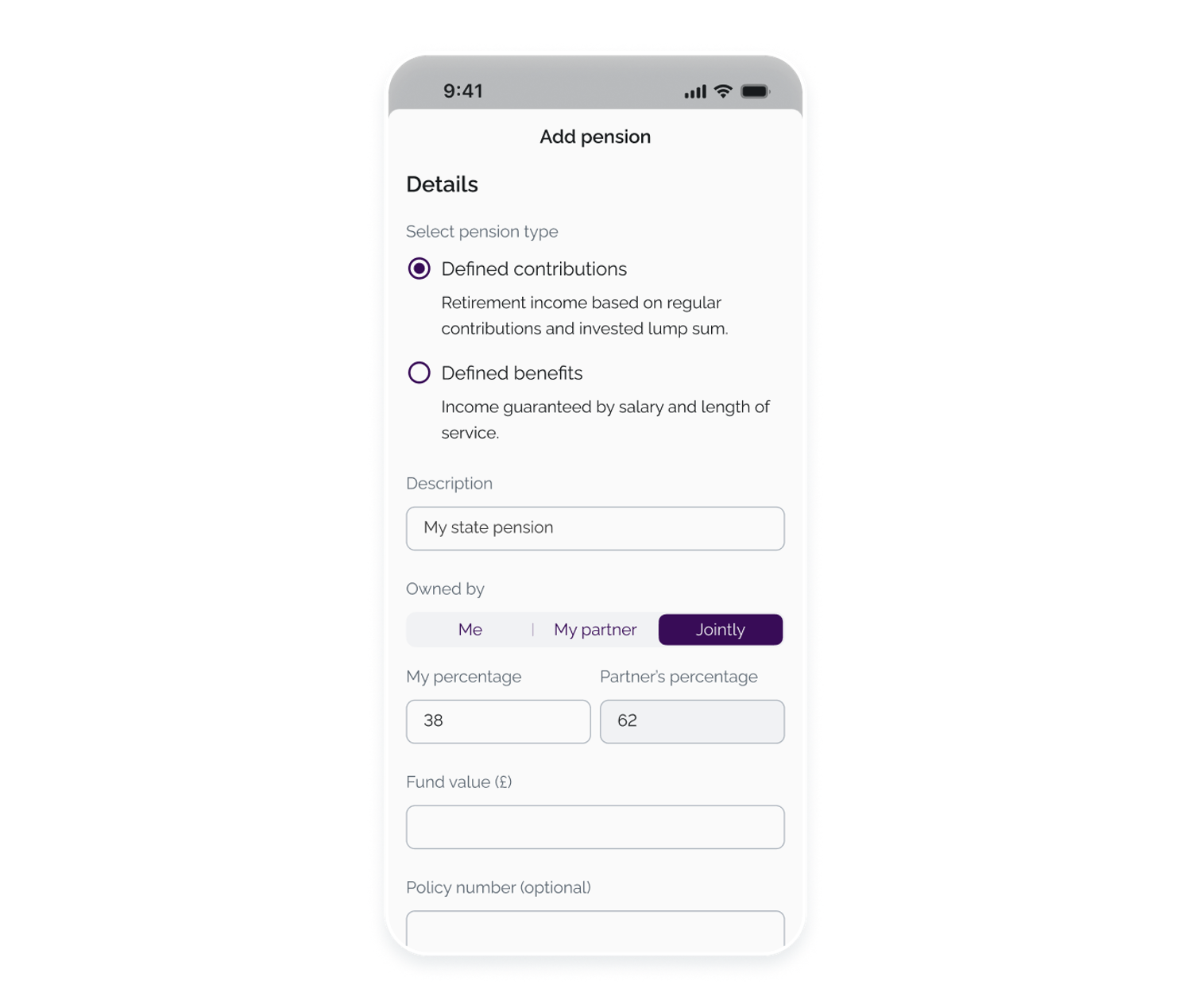
Note: some entries may be read-only and cannot be edited in the portal. If you need to update this information, please contact your adviser. |
Income & Expenditure
The Income & Expenditure tab allows you to view and manage your regular inflows and outgoings to help you track cashflow.
The dashboard shows your Total income and Total expenditure sections, each listing up to five of your most recent entries. To view the full list of records, select View full income list or View full expenditure list at the bottom of each section. This will take you to a detailed list of all your income or expenditure entries, where you can view, edit or delete existing records.
To add a new income or expenditure item, tap the + icon in the relevant section.
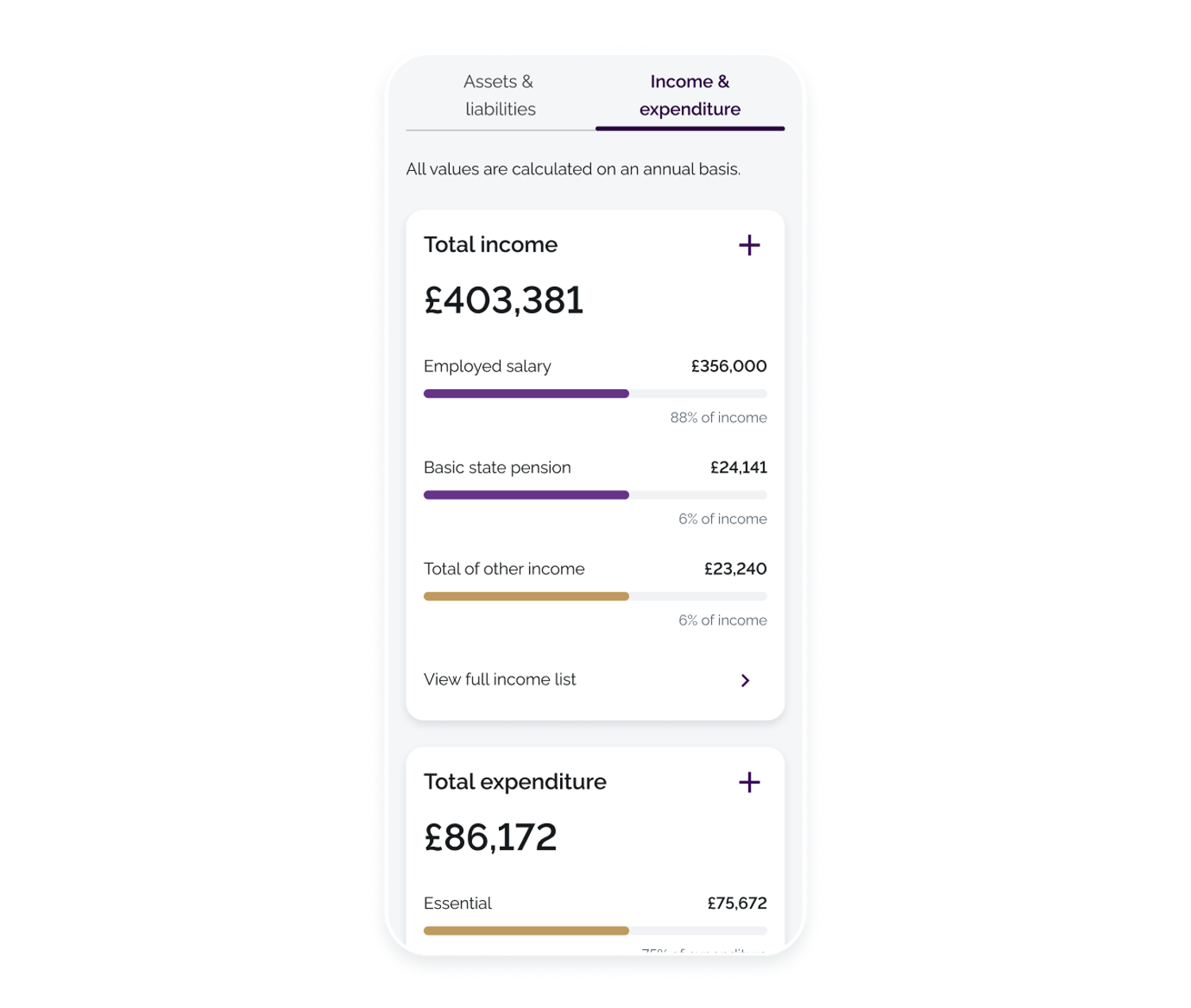
If your partner is registered with Evelyn Partners, their income and expenses will be reflected in the overall summaries.
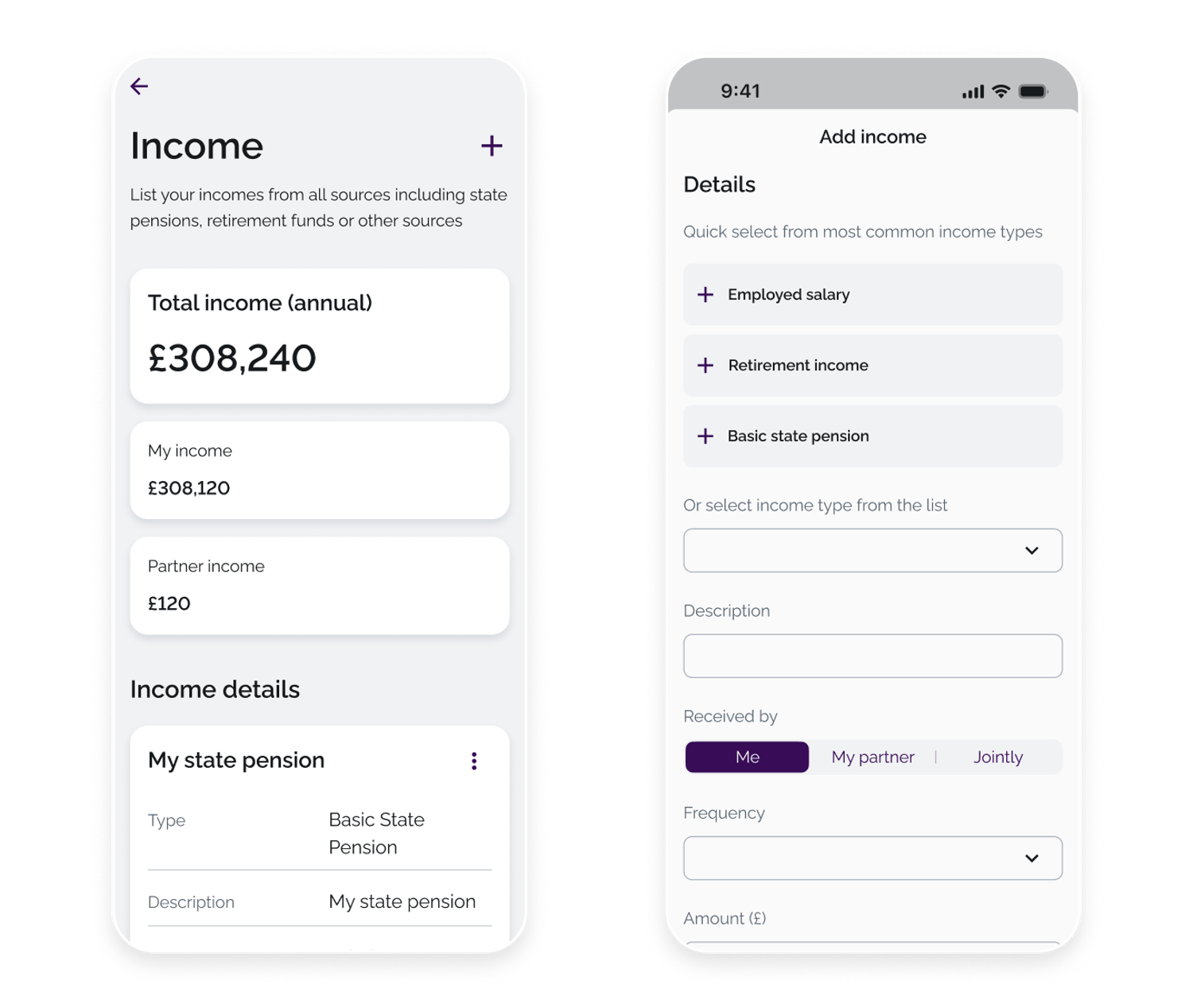
If your partner is registered with Evelyn Partners, the income summary will also display separate totals for My income and Partner income, where applicable.
Adding income
To add a new income entry, tap the + icon in the top-right corner of the Income screen.
You can select from suggested income types, such as Employed salary, Retirement income or Basic state pension, or choose another type from the full list. You’ll then be asked to provide details including who receives the income, the frequency, the amount and any relevant start or end dates.
Keeping this information up to date helps you and your adviser maintain an accurate understanding of your regular income and overall financial position.
Adding expenditure
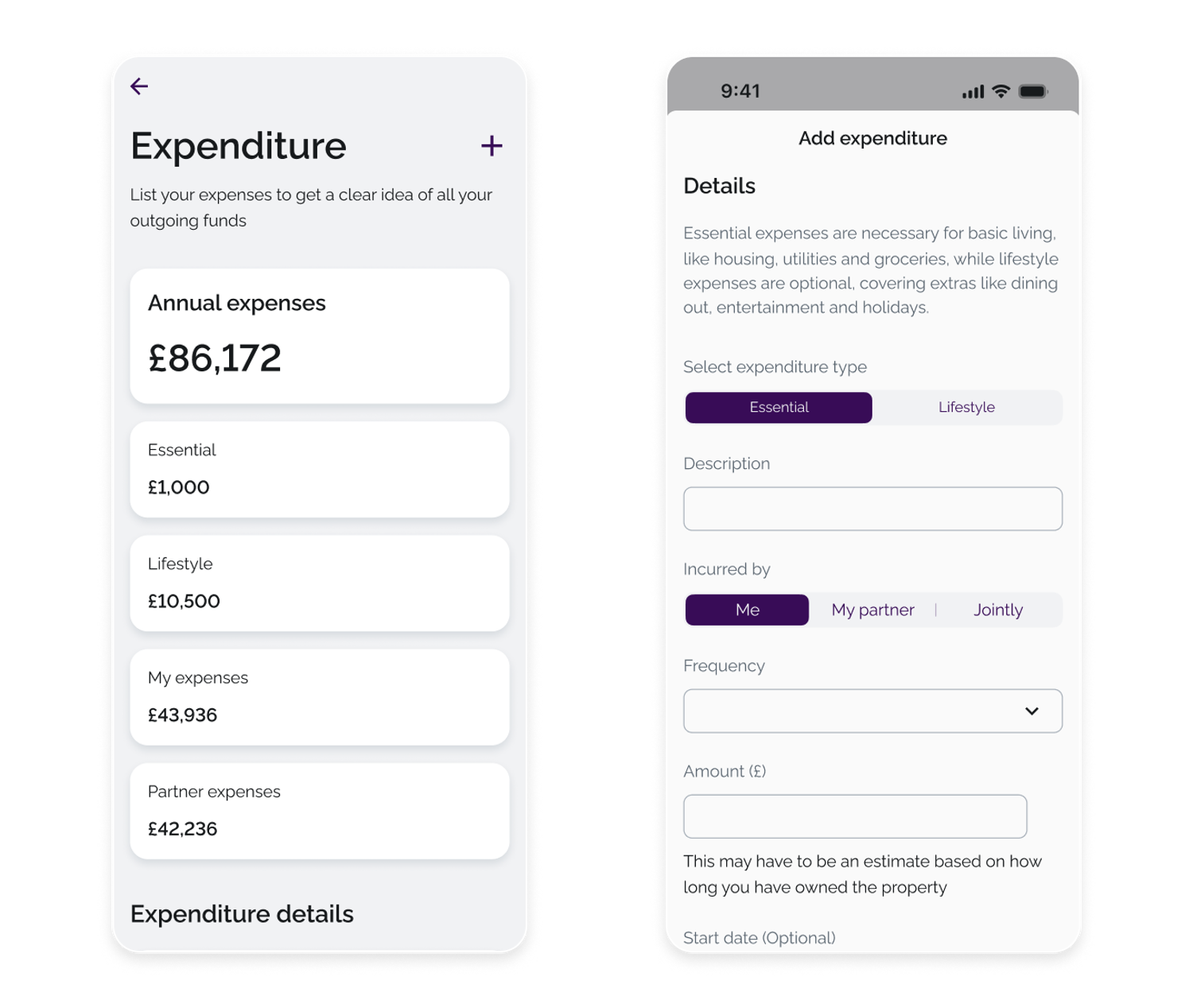
The Expenditure screen provides a summary of your annual expenses, grouped into Essential and Lifestyle categories. Essential expenses cover necessary day-to-day living costs, such as housing, utilities and groceries, while Lifestyle expenses relate to discretionary spending, including dining out, entertainment and holidays.
If your partner is registered with Evelyn Partners, the summary will also display separate totals for My expenses and Partner expenses, where applicable.
When creating a new entry, you’ll be asked to select whether the expense is Essential or Lifestyle, confirm who incurred it, and provide details such as the description, frequency, amount and any relevant start or end dates.
Keeping this information accurate and up to date helps you and your adviser maintain a clear understanding of your overall financial position and spending patterns.