
Portfolio details
This guide provides an overview of the individual portfolio features available in the Evelyn Partners client portal.
Individual portfolio details
This view provides a more detailed look at an individual portfolio, with more granular information about its performance, assets, allocations and transactions. Use the tabs to explore different aspects of the portfolio and review the details available for each area.
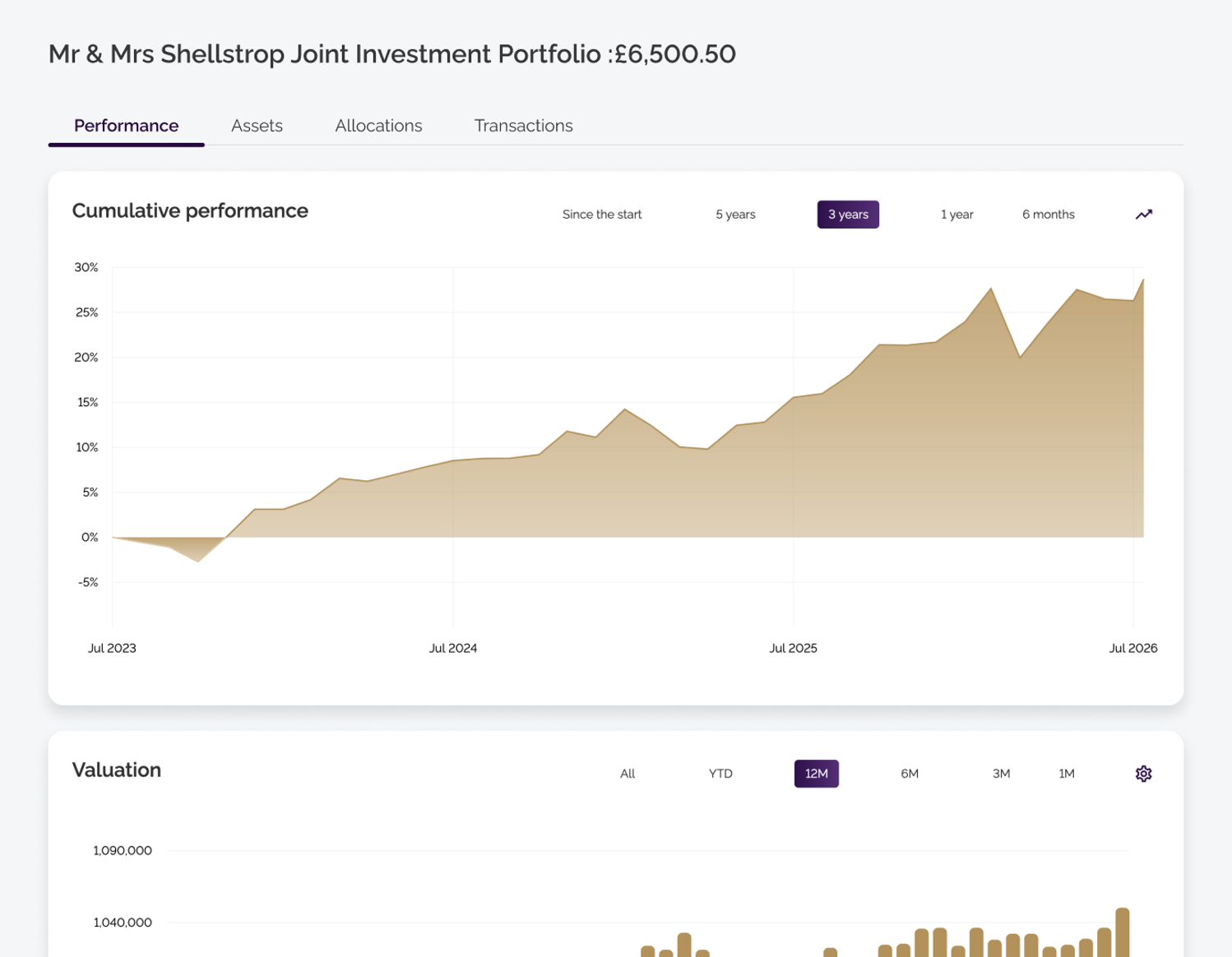
The Performance tab provides an overview of the portfolio’s cumulative performance and valuation over time, with different time periods available for review.
The Cumulative performance chart shows how your portfolio has performed. You can also compare your portfolio’s performance against a selected benchmark by clicking the arrow icon in the top-right corner of the chart.
The Valuation chart shows the value of your portfolio. You can choose how the valuation is displayed by clicking the settings icon in the top-right corner of the chart and selecting day, week, month or quarter
Assets
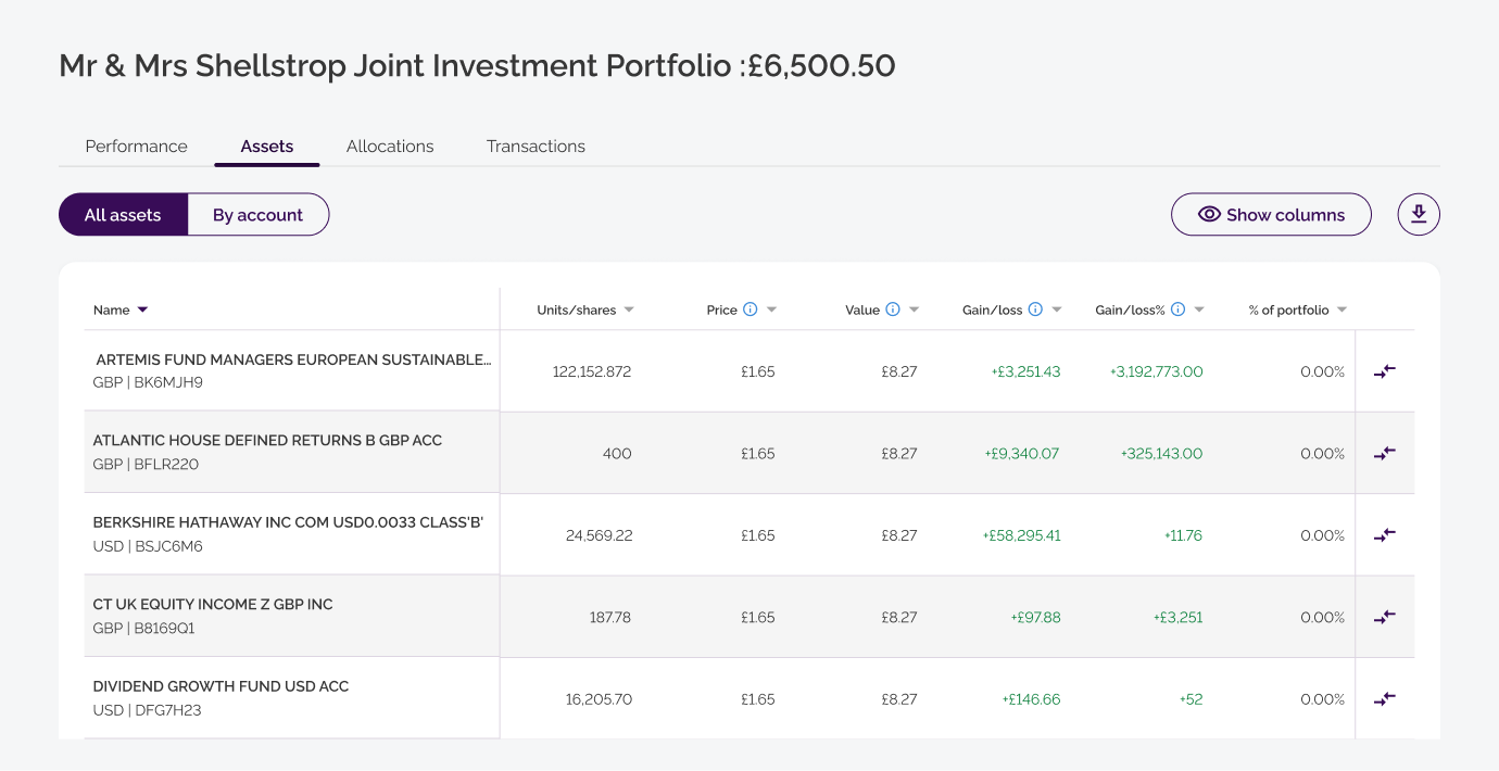
The Assets tab shows the individual assets that make up the portfolio. You can view all assets together or group them by account, depending on how you want to explore the portfolio.
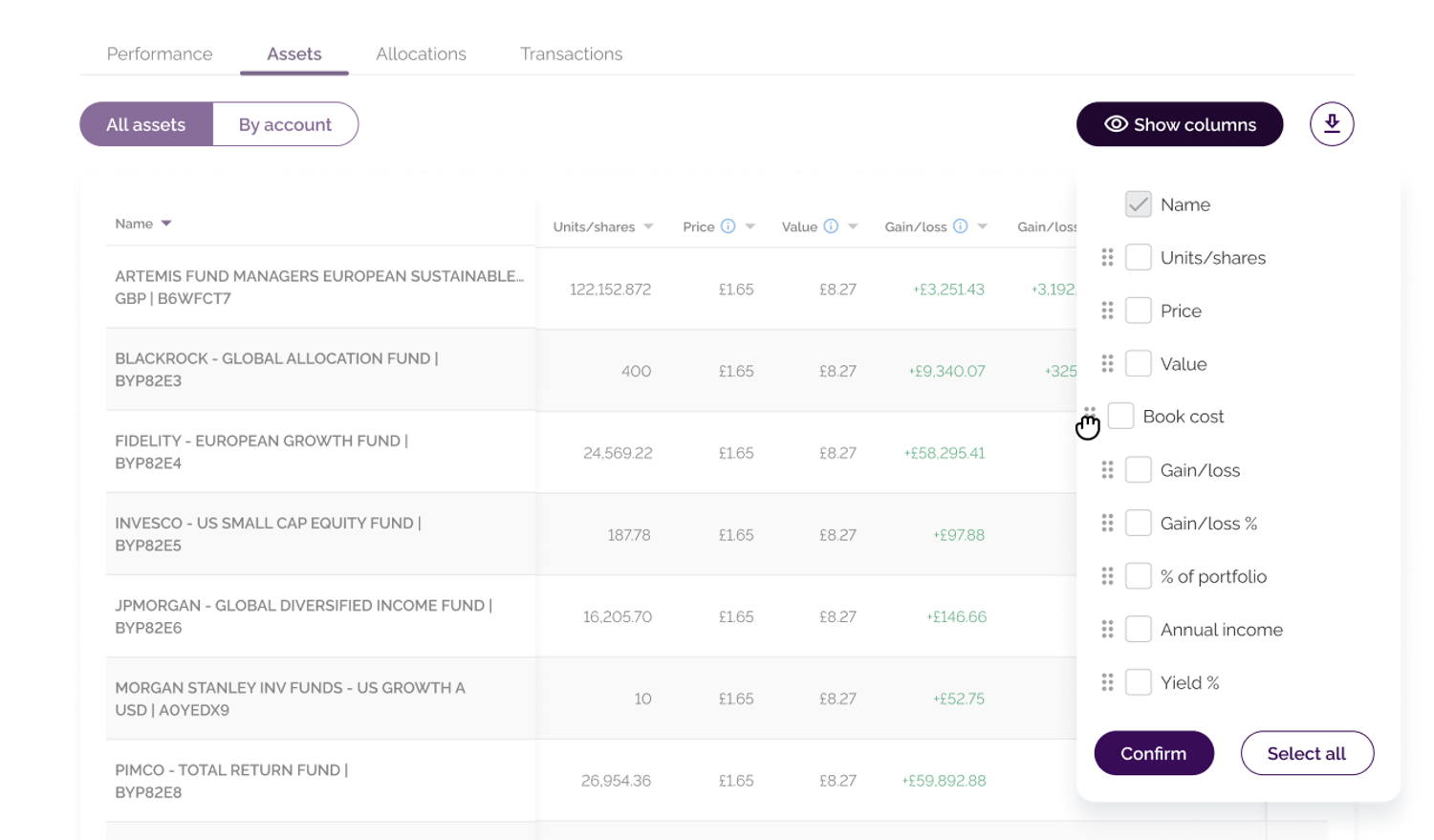
Show columns gives you greater control over the information displayed in the table, allowing you to customise the view to your preferences.
Full asset information is available with a single click. Click the asset in the table to open the right-hand panel, where you can see more detailed information and access the transactions related to that asset.
Tip: Customise your table view You can choose which columns you want to see in the table by selecting Show columns.
|
Asset allocation
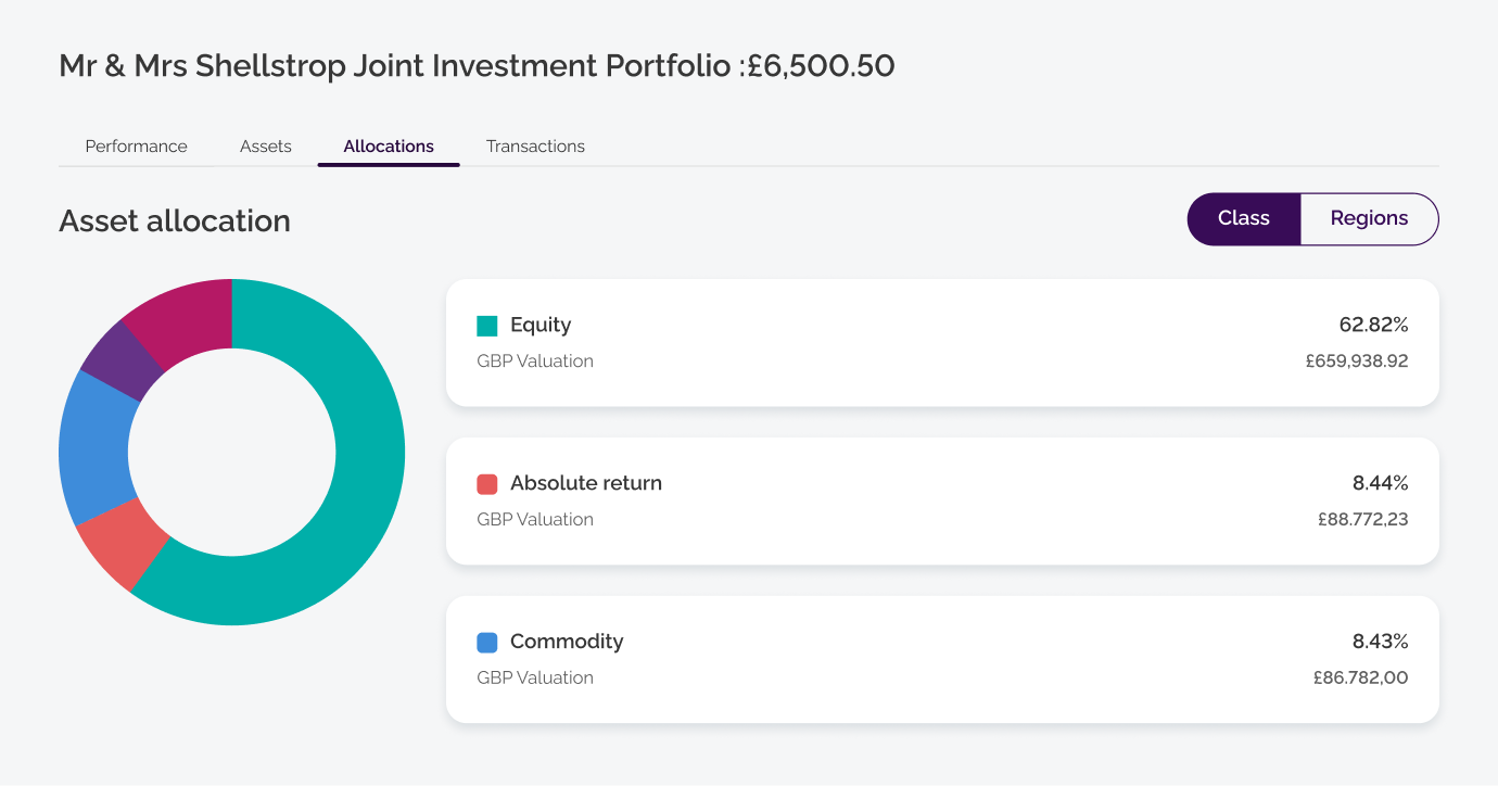
View how your portfolio is allocated across different asset classes or regions. Switch between Class and Regions to explore the allocation from either perspective.
Transactions
The Transactions tab gives you a detailed view of your portfolio’s transaction history.
Transactions are grouped into Investments and Cash, which you can switch between.
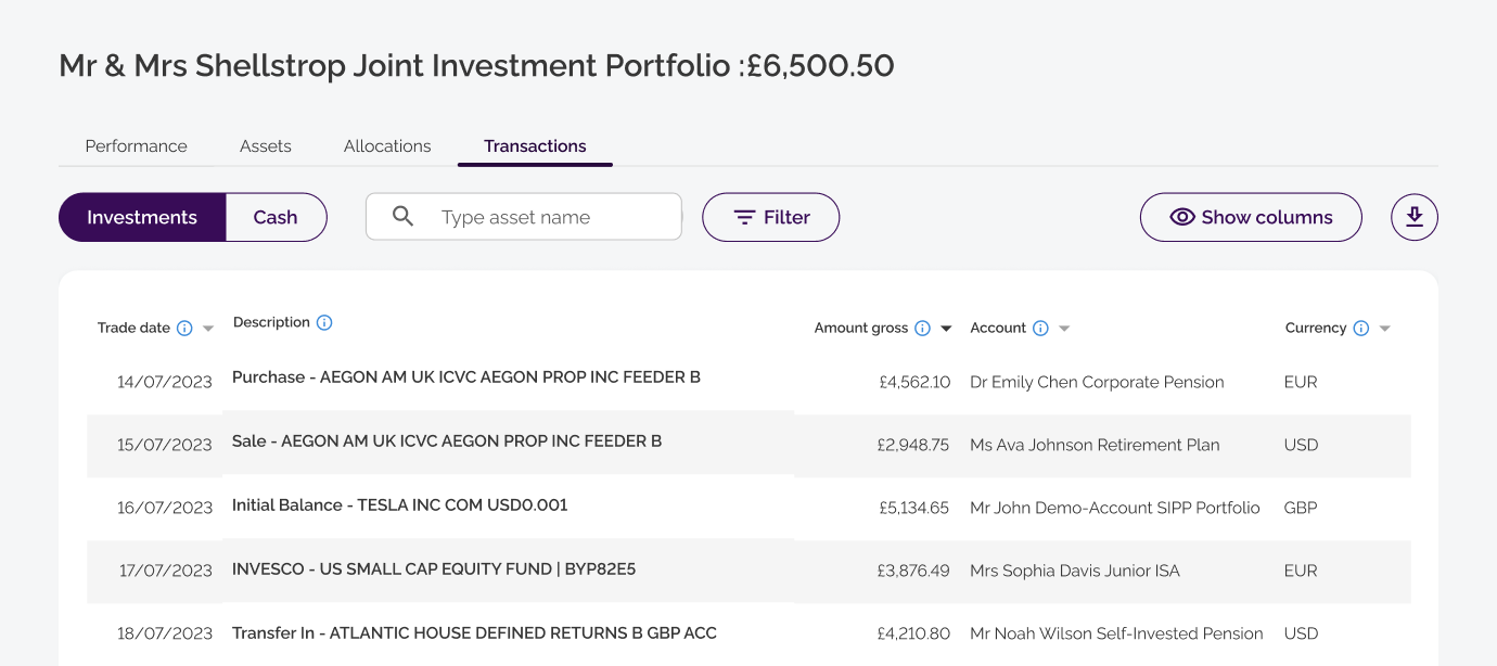
If you are searching for a specific transaction or transaction type, you can narrow down the list by criteria such as amount, date period or asset class in the Filter panel. You can use the search to find a specific transaction.
You can also use Show columns to control which information is displayed in the table and customise the view to your preferences.